Wednesday, October 21, 2015

Current cameras

[In Chinese]

真快,一年过去了,又多了一批添了或者将要添娃的朋友,又临近Black Friday和Holidays,买相机的最佳时刻。

让人意想不到的是,在产品几乎一年一版的年代,最为推荐的还是索尼两岁多了的a6000和a5100,因为还没有直接的竞争对象,所以索尼也不急于更新。SAR(索尼谣言网站)一次又一次都是“狼来了”,结果到现在连下一代的名字,a6100还是a7000,都猜不出来。

a5100 w/ Sony 35/1.8 OSS
这其实是好事,a6000和a5100真的各方面相当完善了,而价格,包括镜头,是越来越好。secondipity经常有两个套头(16-50和55-210)一起的套机才400刀。不太缺钱的,添一个SEL35F18,拍娃、花草、菜肴和扫街什么的、录像都够了,一头走天下,BestBuy经常有$310左右的deal。不愿意花那么多钱的,就填一个Sigma 30mm F2.8 for Sony E-Mount才$150,画质是实实在在1000刀的档次,实用性和SEL35F18无异(除了录像,因为没有防抖);或者SEL50F18,非常适合人像的拍摄和录像,BestBuy经常是不到$200。

a6000 w/ Sigma 30/2.8 mounted and Sony 50/1.8 OSS beside
上面说的这几个头你必须至少买一个,否则相机是白买了。所以考虑预算的时候,这个
一定要考虑进去,好在都不是很贵,不是问题。

如果需要变焦又不差钱的话,可以考虑索尼的SEL1670Z,体积不算太大,画质比套头好
多了。现在一般700刀一下能找到。

说到这,索尼的问题就在这,差不多也就这么几个头了。还有一些全幅的头,都贵得要
死。不过最该有的倒是都有了,反而是松下到目前为止都还没有一个能同时胜任照相和
录像的标准头。

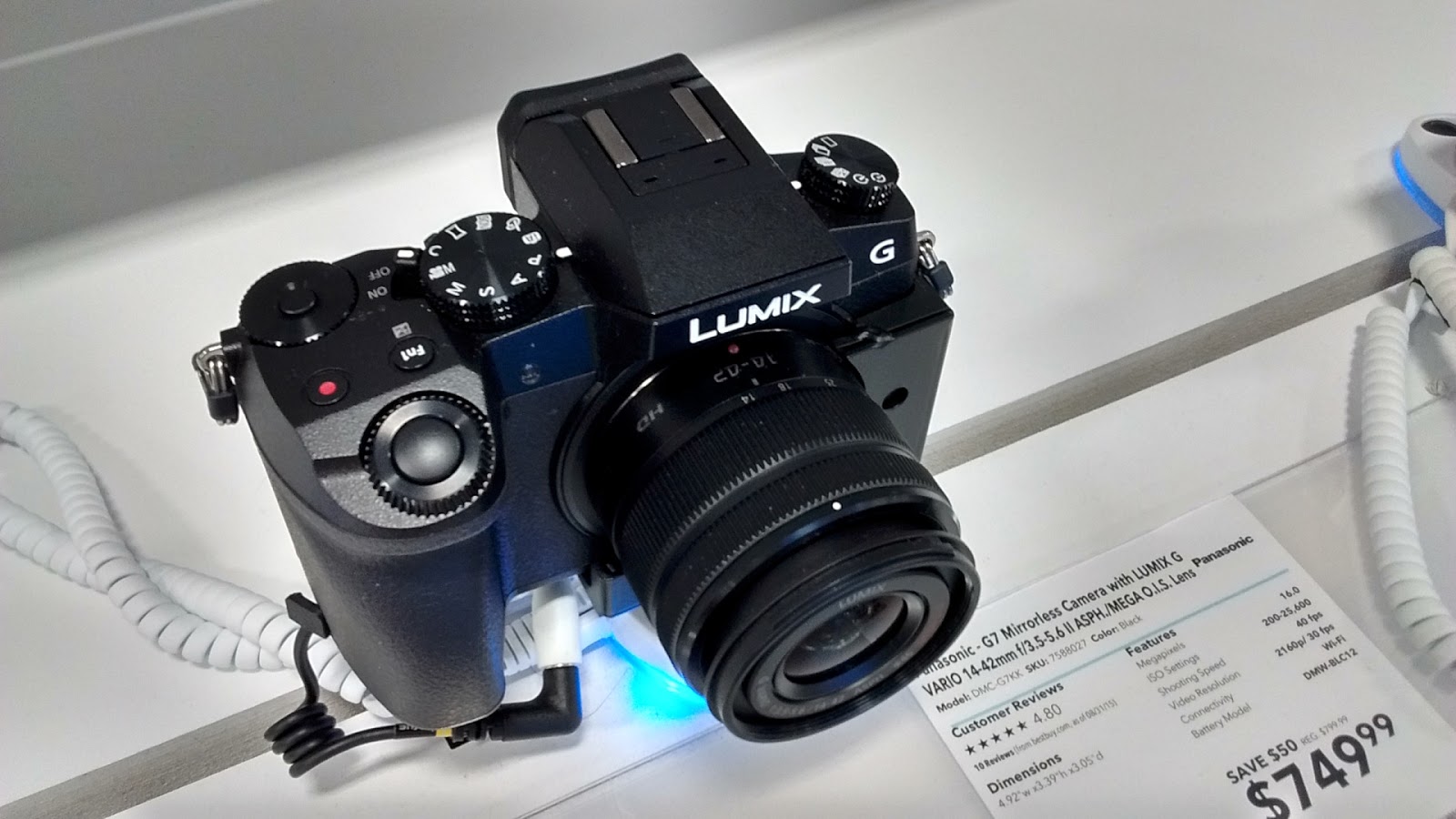
需要更多的镜头选择的话,就得考虑M43了(Micro Four Thirds),首选是松下的G7,其
次是噢林帕斯的E-M10 II。

E-M10 II样样都好,但是所有的噢林帕斯都有两个弱项:连续对焦和录像。因为采用的
是对比度对焦(CDAF)而不是相位对焦(PDAF),所以连续对焦(比如追娃)不理想。
E-M10 II的录像跟以前相比,有了长足的进步 - 5轴防抖和1080P60,但是画质和自动
对焦还是不如松下。

除了镜头多之外,噢林帕斯另一个最大的优势是相机照片直出,比索尼和松下好多了,
基本上不必须用RAW,直接用相机出来的JPEG就够好了。

G7基本上没有什么弱项,包括比较合理的定价,而且有4K录像、电子快门等众多非常好
的功能。虽然也是CDAF,但是松下加入了基于数据库的人工智能,连续对焦效果还是令
人满意的。录像一直是松下的长项,包括自动对焦,没啥说的,只是自动对焦还没有达
到索尼那样完美无缺的程度。

M43的传感器比索尼的APS-C小一些,这其实不是什么问题,高感(ISO)、动态范围(
DR)和景深(DoF)都差不多,不要因为这些把M43排斥在外。网络上很多人还在拿3-4
年以前的M43传感器在说事。倒是16M的像素在做裁剪(crop)的时候不是很富裕。用定
焦头的时候经常需要crop,像素够高的话,出来的画质,甚至100%的crop,都比套头的
画质更好。所以我个人现在基本上对套头没有什么兴趣,索尼传感器的像素是24M。

去年这时候,松下还没有一个比较理想的镜头。20mm f/1.7的神饼画质没说的,对焦不
尽人意,尤其是录像时。25mm f1.4太贵了,没有防抖也不好录像。现在有两个有些意
思的不太贵的大光圈头了:42.5 1.7和25 1.7。不过还是不够理想,前者比标准焦距长
出不少(85mm vs 50mm),室内不好施展(拍录单个人头像还行);后者是标准焦距,
但是没有防抖不好录像。有防抖的30mm的微距头可以凑合当标准挂机头,只是f2.8的最
大光圈照人像时略显不够。需要变焦又不差钱的,可以考虑12-35mm和35-100mm f2.8,
都有防抖很适合录像,就是光圈小了点。虽说Olympus的头都可以用在Panasonic上,但
是都没有防抖(噢林帕斯采用机身内防抖),而松下的机子里面只有GX7这一台有机身
防抖而且还不能用于录像。所以你看,如果买松下的话,真的不如就买内置12-37.5mm
f1.7-2.8莱卡镜头的LX100算了,还有4K录像又便携,一起才$800还时常有$600的丢。

去年这个时候还没有值得考虑的更高档的相机:索尼的A7全幅系列的对焦都还不行(除
了12M像素的A7S),传统单反尤其是全幅的太大太笨太重,而且都不好用于录像(除了
70D,但是70D很多都有中心对焦问题)。

今年不同了,至少有两个新索尼全幅可以考虑:RX1R II和A7R II。两者相对而言,前
者较轻巧和便宜,应该是非专业人士的首选,唯一的不足是:给孩子踢足球拍摄时的焦
距(35mm)短了些。不过42M的全幅像素放大起来应该是比较充裕的,如果能像a6000和
a5100那样有2X的无损zoom的话,较远距离的录像也凑合了。

三星的NX1和NX500怎么样?缺乏一个适合录像的象SEL35F18那样的带防抖的标准头。三
星的东西纸面上看都是非常的前卫、非常的完美,拿到手上之后往往会有一些似乎细小
的但是致命的问题,而三星的风格是永远不会再理会这些“小”问题,因为他们总是全
身心地忙于开发更前卫的新版。几年前的Galaxy手机是个例外,在售后的完善更新方面
有改进,所以成绩很好。但是这几年做大了,又回归本色了。三星的东西还都标价离谱
,贬值迅速,所以到目前为止我还没敢碰过,尽管各方面评价都很好。

富士怎么样?对焦和录像都还不够好,杰出优点是相机JPEG直出的色彩,甚至能模拟
Kodakchrome的色彩(Classic Chrome)。

XT-1/10采用相位对焦,肯定是比其它富士型号这方面好多了,但是网上的反映褒贬不
一,有些人说和固件版本、镜头和光线有关。


我在BB里摸过这两台机器,感觉对焦速度明显不如a6000和现在的噢林帕斯和松下,跟
较早的噢林帕斯PEN的速度差不多(不算很慢)。虽说是相位对焦,我的感觉还像是对
比度对焦那种拉风箱的过程,没有a6000那种立马一步到位的爽快感。没试连续对焦,
据说可以实用,这里Metal有大量X-T10 + 56/1.2的抓拍例子。

索尼RX100怎么样?传感器还是太小了。如果你实在是要一个装口袋里的相机,而松下
的GM5、LX100和噢林帕斯的E-PM3还是嫌大了些的话,那就只有这个了。

莱卡Q怎么样?莱卡终于有了个普通消费者能用的全幅相机 - AF(自动对焦)、EVF(
电子取景器)、光学防抖和1080p60录像,但是索尼RX1R II这一出来,立马又相形见绌
了些 - 无论是性能、功能还是价格和便携上。不过买LV和阿马仕的朋友们是不管这些
的,价格低了还不买呢。

佳能EOSM怎么样?对焦不行,包括录像的AF。

尼康One怎么样?传感器太小了,还不能像RX100那样装口袋里,毫无意义的东西。

尼康和佳能都还没有做一个能用的小相机的意思,否则它们的单反怎么办?已经一直在
大幅下滑了,再自己给自己的背后捅一刀?它们的境地非常困难:它们的优势是现有镜
头群,但是都不能直接用到无镜相机上去(法兰距和对焦方式不兼容);玩转接的话,
人们为什么非要用它们的机身来玩(索尼已经远远走在前面了)?

个别BestBuy的店子,比如Portland地区在机场边的那一个,陈列的相机非常多,包括
几乎所有上面提到的相机,可以去亲手摸摸。BB的店子里经常有非常低价的open box,
路过的时候记得问问,我的a6000、a5100和a5000套机都是这样买的,比半价还低,状
况都和新的一样。

其实说了半天都是浮云,在数码时代,相机和镜头只是开始,最终能给你带来好照片的
是Lightroom,花点时间看看这段视频比倒腾什么器材都更管用。

【注:我和秋凉摄影没有任何关联,就是发现这伙计把LR讲的最为简洁又非常的踩点,合
我的口味。这里是全套】

如果没有时间去全面学习的话,可以走捷径,到这里下载模拟KodakChrome的预置文件:

解压后放到这个目录下面:

C:\Users\[UserName]\AppData\Roaming\Adobe\Lightroom\Develop Presets\User
Presets

你就可以轻松搞出大家公认的最漂亮的柯达经典色彩来:


这是之前的:


Saturday, September 12, 2015

Penclic mouse, what's the point?

It is just a small ordinary mouse with a dumb bar hanging on the top.

It is even not ergonomic (its advertized selling point), because the scrolling wheel is not on the pen but still on the mouse like a normal mouse. So your finger must fly between the wheel and the buttons, all the time. Further more, the buttons are located too low, you still have to twist your arm, like working with a traditional mouse, to reach these buttons.


Why not just make a real pen without the mouse base?  Obviously, there are plenty of space to seat the optical sensor, the wheel and the battery, all within a single pen body. At least, move the wheel onto the pen body and move the buttons higher, then it would be truly an ergonomic and revolutionary mouse/pen.

My workaround:

Modify the back and forward buttons to be scroll down and up. Then I no longer need to touch that stupidly located wheel. A very simple AHK script can do it:

xbutton1::
  MouseClick,WheelUp,,,5,0,D,R
return

xbutton2::
  MouseClick,WheelDown,,,5,0,D,R
return


Now I can conveniently use my thumb to scroll up and down, but it is still an awkward device. Swapping left and right buttons might make it more comfortable, but I'm done with it and it is going back to the store.


Friday, September 4, 2015

Three essential tweaks for FireFox

The following tweaks work for all Mozilla based browsers such as FireFox, Light, WaterFox, Pale Moon and etc.

RememberPass add-on

This add-on forces FireFox to remember passwords for sites that do not want you to.


Toggle animated GIFs

Not only very annoying and distracting, animated images also consume computer resources (i.e. slow down), run them hot and drain your laptop's battery. With this add-on, you can make them quiet by default and, when you do want to see the action, click on them to play.


For Flash, you can, and you should, make the plugin to always "Ask to Activate":


UserContent.css

There are two more annoying things to block: scrolling (marquee) and blinking text. Find the profile directory (e.g., Palemoon\User\Palemoon\Profiles\Default) and create a new folder "chrome". Within this new folder, create a new file "UserContent.css" and copy and paste these two lines into it:

marquee { -moz-binding: none; }
blink { text-decoration: none ! important; }

Then restart your browser. Don't worry, you can still see the text in full, just not scrolling nor blinking, nice, ha.


All above methods has no side effects like ad and flash block add-on while making your browsing experience entirely calm.

Watch this video for before and after:

Tuesday, September 1, 2015

Tweaks for Dell Venue 11 Pro 7140

I have been using the Miix 2 8 for about two years now as my only computer. When editing video for youtube, I felt the desire for a faster CPU like the Core M. I bought a Dell Venue 11 Pro 7140 when it was on sale for only $299:
  • It has the fan-less Core M CPU that's much faster than Atom found on most tablets such as the Miix. Now editing HD video in PowerDirector is totally smooth including preview and rendering speed is at least 3x faster. Core M drains more battery than Atom but still far less than i5.
  • It has a 1920x1080 FHD screen. A non-16:9 screen (4:3, 15:10 or even 16:10) is still far better, but the higher resolution, 1080 vs. 736, is less painful. And, the screen is fabulous, top class, for both entertainment and text work.
  • Optional keyboard that makes this tablet meanwhile a true laptop. I just cannot accept the soft keyboard (also available) like the one on Surface.
  • SSD, 4G, WiFi are all easily upgradable. For example, I can swap the 64GB SSD with a 256GB one for $100 or less.
  • Charged via a dedicated micro USB port, allowing me to share a charger between my phone and other devices. The included Dell charger can auto switch between 5V and 19V and charge it much faster than 5V.
  • Loud and clear speakers. Again, this tablet is ideal for both entertainment and serious work.

First thing first, the keyboard can only open up to 110 degree; i.e., the tablet is almost vertical when mounted on it - way too uncomfortable.  We must mod it.

Before and After:


Watch this video on the mod:


Yes, the tablet/laptop still stay well on a desktop as you see in above photos, because this keyboard is whopping heavy at 1.5 lb. In addition to a 28 Wh (3250mAh, 7.2V) battery and a metal case, there are two metal pieces inside for nothing but balance weight of 2.55 oz.

Another big problem is Death during Sleep (DdS). Randomly and frequently, the tablet cannot wake up from sleep. Here is what I did to fix this problem.
  1. Download and update the A02 drivers, especially the Wi-Fi driver, from this cab file. And upgrade BIOS to A07. Older and newer drivers have this or that issues. For example, after I updated the Wi-Fi driver to the latest from Intel website, I could never finish copying a 20MB file from another computer over Wi-Fi.
  2. Removed Adobe Flash Player and installed 11.2.202.235 (x64) (Non-IE) and 11.2.202.235 (x64) (IE). This might not be necessary and both removing and installation are tricky (feel free to ask your questions). In a nut shell: delete Macromed under Windows\System32 and SysWOW64, download and run the Flash uninstaller, run Non-IE install and select "never check update" at the end, run IE install in Windows 7 mode and regsvr32 the ocx found in the deleted Macromed folders.
  3. Avoid using 32-bit Flash player plugins and ActiveX. I think this is the key, in addition to the Wi-Fi driver, to avoid DdS. In Internet Explorer, check "Enable 64-bit process for Enhanced Protected Mode" under advanced options. This forces IE to use its 64-bit version only, otherwise IE always opens tabs in 32-bit mode by default and thus uses 32-bit ActiveX. For 64-bit FireFox-alike browsers, there are Pale Moon, WaterFox and FireFox Light etc. and I picked up Pale Moon Portable 25.1.0 (x64). There is a 64-bit Chrome as well, but never install anything Google on your computer, because it is very difficult to remove them and prevent them from auto updating.
  4. If you use your phone to tether via USB, this is another thing to check if you experience DdS. Better not using this feature at all, because I haven't found a solid answer for phone USB tether, diag and ADB drivers that never crash my computers. In my case, I change the driver from Microsoft "Remote NDIS based Internet Sharing Device" to Samsung "Mobile USB Remote NDIS Network Device". If all fail, give PDANet a try, it uses its own serial-over-USB driver.
Core M supports connected standby like Atom, but it drains significantly more power during sleep. Therefore, it is a must to put the tablet into hibernate mode after, say, 4 hours, by following this MS article. Without hibernate, the keyboard battery will go down to 50% after 10 hours standby.

So, this article is more about fixes than tweaks. PC is a mess, but at least it is quite open, flexible, customizable and fixable; I don't have to "hang myself on a single (Apple) tree" (an old Chinese saying). If interested, you may find this tablet for as low as $400 often in BestBuy after coupons and even lower in Dell outlet after 50% discount.

[update 9/29/2015] My 7140 has not crashed a single time since I wrote this article. So, couple days ago I started using 32-bit Palemoon for Atom and thus 32-bit flash as well. Still no crash. Therefore, the key to avoid DoS is to use an old Flash. 64-bit Mozilla based browsers use way too much memory; this is to be expected - the 32-bit ones are already horrible in this regard, 64-bit can only be double horrible.

Sunday, August 23, 2015

Free Wi-Fi hotspots at home and everywhere!

When you use your laptops on Wi-Fi, have you noticed something like "xfinitywifi"?  The name may very depending on where you are, like CableWiFi instead. Connect to it, then your web browser will open automatically and you'll get 1 hour of Internet for free. Speed is pretty good at about 12MB down and 2MB up.


Thursday, August 20, 2015

Tweaks for Moto E

First thing first is to block system update:
  • Download and install Debloater.
  • Check "3c_ota.apk" (com.motorola.ccc.ota, "base.apk" on some versions) and click apply.

Right after done this, the annoying and dangerous notification "Install System Update" is gone, forever.

In order to block some other annoying notifications: "SIM card is not from Verizon", "Sign into network" and "Update package notifications" (by WeChat), you may simply install an app called as Notification Auto Clear. Note that this app will block all notifications by default and you need to enable those that you do want.

Other than using a simple app, I do it in a far more complicated way: Tasker + Notification Listener.

In Tasker, I create a new profile: Event, Plugin, Notification Listener, Posted and select all apps.


The new task for this profile: Plugin, Cancel notification, and "Notification key" is %nlkey. Then add all the titles of the notifications you want to block in the "If" field.


I also disabled all the apps I don't need: Settings, Apps, ALL. Disable all you may, except those you do need. Don't disable these three unless you know what you're doing: Google Play Service and Google Service Framework (for Google apps such as GMail and Google Voice), and Media Storage (for ringtones). You may use Debloater, but it is more powerful and thus might let you disable wrongly a necessary system app.

See how clean the notification area is now:


Lastly, if you're bothered by the phone's self activation, check "VzwPhoneService.apk" in Debloater and apply.

Related articles:

Enable GSM mode on Verizon Moto E 5.1

Thursday, August 6, 2015

Get rid of the downloaded system update from the moto E!

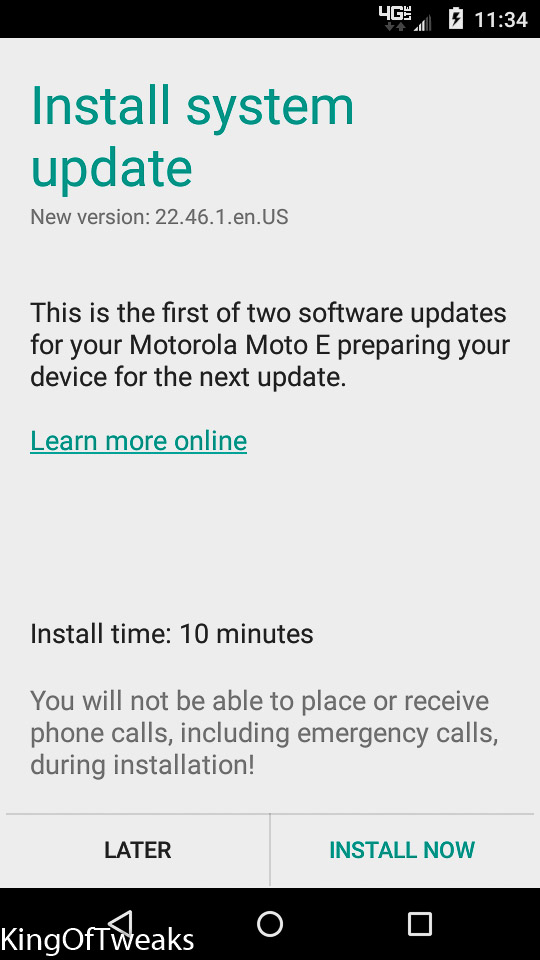
The moto E is my current favorite phone because it has so many aspects done right for so little money. Soon or later, this phone will receive a system update notification and you should not accept it, because it'll make it more difficult or even impossible to use its GSM mode. However, if you don't accept the update, the notification is quite annoying and you may still accidentally accept it.


First thing first, don't touch on "LATER" or "INSTALL NOW", just touch the home button whenever you see above popup.

And, good news, I've found a way to get rid of the downloaded (but not installed yet) dangerous update.

Download and install KingRoot 4.1. You may need to give it many tries to eventually get a successful root and this V4.1 gives you the highest chance. If it no longer want to try, clear its data, force stop it and start it again. During the rooting process, don't do anything and just wait. Removing unnecessary apps may also help the success rate, especially those conducting lots of background activities such as TogicVideo.


Now download and install a terminal emulator (I use JuiceSSH). Make a new connection to local and type in "su" once you are in the terminal. KingUser will ask you and you select "Allow":


Now you have the root access, type "ls -l /cache" and you'll see there the downloaded update file, Blur_Version.22.41.28.surnia_verizon.verizon.en.US:


Type "rm /cache/Blur*" to remove the downloaded update. Type "ls -l /cache" again to make sure you no longer see it. Reboot, you'll happily see this:


Or, if you touched "INSTALL NOW", you'll happily see this instead after the reboot:


It is too early to tell whether the phone will get the update again or not, but at least peace for now.

[update] The next morning, the system update notification showed up again. This time, I simply root again and removed the downloaded zip in the cache folder. From now on, I'll just touch the home button whenever the update pops up. Not a big deal, because the popup does not show up too frequently and I know no damage if I accidentally touch the wrong button.

[update] Permanently block system update and other notifications.