Thursday, August 6, 2015

Get rid of the downloaded system update from the moto E!

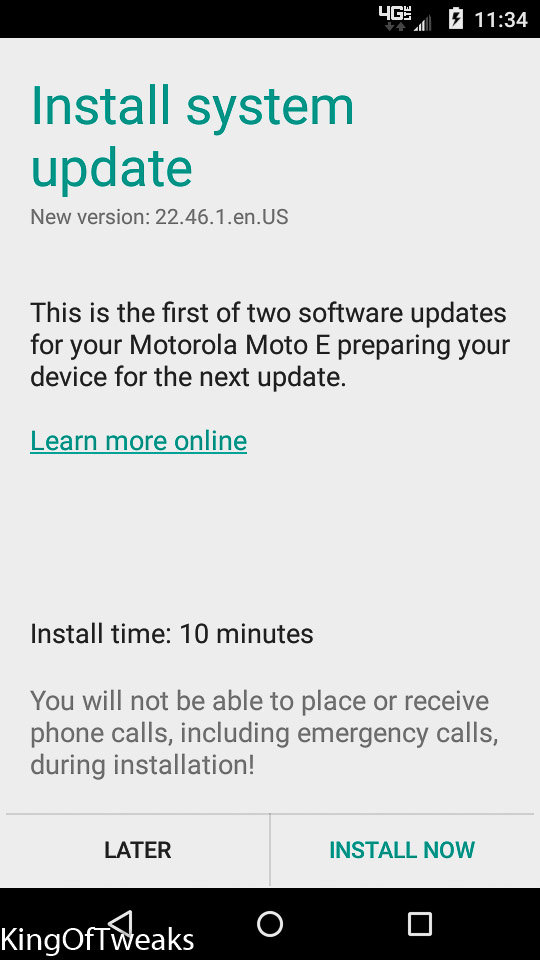
The moto E is my current favorite phone because it has so many aspects done right for so little money. Soon or later, this phone will receive a system update notification and you should not accept it, because it'll make it more difficult or even impossible to use its GSM mode. However, if you don't accept the update, the notification is quite annoying and you may still accidentally accept it.


First thing first, don't touch on "LATER" or "INSTALL NOW", just touch the home button whenever you see above popup.

And, good news, I've found a way to get rid of the downloaded (but not installed yet) dangerous update.

Download and install KingRoot 4.1. You may need to give it many tries to eventually get a successful root and this V4.1 gives you the highest chance. If it no longer want to try, clear its data, force stop it and start it again. During the rooting process, don't do anything and just wait. Removing unnecessary apps may also help the success rate, especially those conducting lots of background activities such as TogicVideo.


Now download and install a terminal emulator (I use JuiceSSH). Make a new connection to local and type in "su" once you are in the terminal. KingUser will ask you and you select "Allow":


Now you have the root access, type "ls -l /cache" and you'll see there the downloaded update file, Blur_Version.22.41.28.surnia_verizon.verizon.en.US:


Type "rm /cache/Blur*" to remove the downloaded update. Type "ls -l /cache" again to make sure you no longer see it. Reboot, you'll happily see this:


Or, if you touched "INSTALL NOW", you'll happily see this instead after the reboot:


It is too early to tell whether the phone will get the update again or not, but at least peace for now.

[update] The next morning, the system update notification showed up again. This time, I simply root again and removed the downloaded zip in the cache folder. From now on, I'll just touch the home button whenever the update pops up. Not a big deal, because the popup does not show up too frequently and I know no damage if I accidentally touch the wrong button.

[update] Permanently block system update and other notifications.

Thursday, July 30, 2015

Don't Sleep, what a useful little utility!

Most of us set our computers to sleep after 10 minutes or so, but there are times you need it to stay up longer, e.g, while downloading Windows 10. Don't Sleep does exactly that for you!


You may even enable its timer to let it exit by itself after, say, 30 minutes or 1 hour. Cannot be any more handy.

If your laptop/tablet is Connected Standby type, you should select "Screenserver / turn off monitor" in addition to standby, because they go into sleep as soon as the screen is off.

Get Windows 10 now

but don't upgrade yet at this early stage, to be wise as always.

Go to Microsoft's this site and download the Media Creation Tool to download Windows 10.
  •  Then you can select a language and these versions: Home, Pro or Both. 
  • The "N" suffix means no Media Player included for European users.
  • If you are going to burn DVD, you'd better select either Home or Pro, once at a time to get both separately. If you select "Both", you'll need a DL disk which is expensive and very troublesome to burn.
  • If you need the 32-bit version only, you must run this tool on a 32-bit PC, or the process will fail at the end of downloading, wasting your bandwidth and time.

After the file has been downloaded to your computer, the tool let you chose between a USB drive or a DVD. If you choose DVD, you'll be asked to save an ISO image.

The downloaded files are stored in the "C:\$WINDOWS.~BT" and "C:\$Windows.~WS" folders. Even after an ISO image is created, the huge files will still be left in these folders. If you want to clean up them, you simply run this tool again and exit before download again.

It took 30 minutes to 1 hour, depending on your Internet speed. So you'd better run the great Don't Sleep utility to temporarily prevent your computer from sleeping.

Friday, July 17, 2015

Extremely easy recovery of SD cards, jump drives and other storage devices

Once in your lifetime, when you insert a SD card (or other alike storage devices), you'll see this dreadful thing:


No fear, just never click on "format" and you'll be fine. Open a Command Propt and simply type in this simple command line and return:


Note the "G" is the drive name you saw in the first photo. After just 1 second or 2, you'll see the command output and, bingo, your drive's content will pop up as it usually did:


If above not successful, you can try TestDisk. But be sure to do above first, because it is a 100% recovery and the process takes no time. With other methods, you'll usually lose at least the original file names and they may take several hours to achieve only a partial recovery.

Saturday, July 4, 2015

Verizon Moto E (2015) - the king of phones!

For $50 (currently $20, after $25 BestBuy rewards), you simply cannot get a more ideal phone than MOTXT1528PP:
  • Global 4G/LTE (see here), works on Verizon, Sprint (see comments below), AT&T, T-Mobile (confirmed LTE) and etc.
  • Great battery life with its large 2400mAh battery.
  • SD card slot for more storage.
  • OTG USB.
  • FM radio with exceptionally good reception and sound quality, better than the best FM radios I own. And it is stereo, yes! You may plug in something into the headphone jack as an antenna and then cast audio to a Bluetooth device. I can even click the fast forward/backward buttons on my HS3000 to switch stations! Are we talking about a budget phone?
  • Perfect screen size of 4.5", third generation gorilla glass, anti fingerprints.
  • Hotspot works out of box, regardless what prepaid service plan you have! No need to do any hack to bypass the entitlement check.
  • Loud and clear speaker at top front. 
  • Non-slip frame. This frame is also easy to open to access the SD and SIM slots - no need to open the entire back cover.
  • Hot swap SIM cards, unlike all Samsung and LG phones that force a reboot.
  • Fast data speed (20M download), especially uploading (10M, about double of Samsung S4 and LG G2). 
  • Very few blotware if any at all and all Moto "enhancements" can be easily disabled.
  • More than 30 languages built in, including Korea, Japanese, Simplified and Traditional Chinese.

So what's the catch?
  •  No permanent root yet, but Kingroot works as a temporary one. You just need to use Kingroot to root it after every boot. So yes you can let hotspot go through VPN. Some apps that require modifications to the system folder won't work, such as Busybox and those that need it. BTW, Kingroot 4.0 works better than 4.1. If it fails, reboot, go to settings and apps, KingRoot and clear data. Disabling Moto, Moto Actions, Moto Display and Motorola Alert may also help.
  • As soon as it is connected to the Internet, it'll receive an update to 5.1 which makes it more difficult to switch to GSM mode (global mode). So you'd better ignore the "Install system update" notification - don't touch it, just ignore it. Normally you have to have a Verizon account to get an OTA update and prepaid phones almost never get any update at all, so you know how eagerly Verizon wants to patch this and why you must not take this generous offer.
  • No 2100 MHz that's used for 3G in some countries such India and China.
Two alternatives:
  •  Moto Luge 4G/LTE. It was on sale in BestBuy for $50 before $25 rewards. Smaller (4.3") but better looking screen, slim and adorable. Also a global phone but no LTE on T-Mobile etc. (H+ only). Totally rootable, but Android 4.4.2 has a bug with VPN and ipv6, so you need to use the "OpenVPN Settings" app if you need VPN and disable ipv6.
  • LG Transpyre 4G/LTE. It is always $80 or even lower. It is not a global phone though, CDMA only. Beautiful screen. Root and VPN is the same as the Luge.
[update] Kingroot is not practical and thus this phone is not so suitable for hotspot if VPN is needed, unless you can run VPN on other devices. Brand new Luge is only $80 on ebay, the only thing missing is a fantastic FM radio.

[update] Now there is a workaround to the annoying system update.

[update] Success rate of Kingroot 4.1 is high now, almost successful every time, due to either the removal of TogicTV app (very background active), or newer rooting schemes added to KingRoot's database?

Saturday, June 13, 2015

Sony cameras - dusts leak to sensor

Dusts can creep into the E-mount interface and they are then be sucked to the sensor:


And these dusts are micro, cannot be blown off with a blower. You must use alcohol to clean them up.

I found this O ring from a local hardware store for about $1:


It is about 45mm x 2mm, perfect to seal the E-mount slot:


Works for a6000, a5100, a5000 and all E-mount cameras including A7 series. No problem for lens swap. May keep water out too, to some extent.

If you cannot find such an O ring, you may use a proper rub band, but might not be so friendly to lens swapping:


Tuesday, June 9, 2015

Don't fix it if it is not broken

As a tweaker (other than a trouble maker), I know that rule, very well; so I never update any software. Somehow I installed a new version of the TouchMousePointer on my Miix, thought I had a copy of the old version to go back. Well, as always, the new version is erratic and double-tap no longer work (unless I do it extremely quickly). To make it a though tragedy, I can no longer find the old copy in my storage!

After lots of searching, the oldest version I could find is 1.0.9.1 and, fortunately, it works fine on my Miix. To save your trouble finding it, here I uploaded it to my server:

http://www.kots.us/data/uploads/touchmousepointer1091.zip

There are even older versions around, 1.0.32 and 1.0.33. They work more solid than the 1.0.9.1, but they lack of an essential feature: click through the touchpad. For example, if there is an image file underneath the translucent mouse pad, you can still double tap on the mousepad to open it, as showing below. With this fantastic feature, the mousepad takes virtually no space/room on your touchscreen, as you can still see and access whatever underneath, and you can move the mousepad to anywhere you like without blocking anything on your screen.